

How we uploaded 91 leads into Google Ads and learned the hard way.
A real walkthrough of moving WhatConverts data into Google Ads as offline conversions with tiered values. The 8% match rate disaster, the four template errors we hit, the conversion action name fix, and what we should have done from the start.

Started with 94 leads in a WhatConverts export. Tonight we landed 43 successful conversions in Google Ads with tiered values. Here is what broke between those two numbers.
WhatConverts had stopped firing conversions automatically. The Google Ads account was running blind because no signed case data was flowing back. Smart Bidding had no signal to optimize toward.
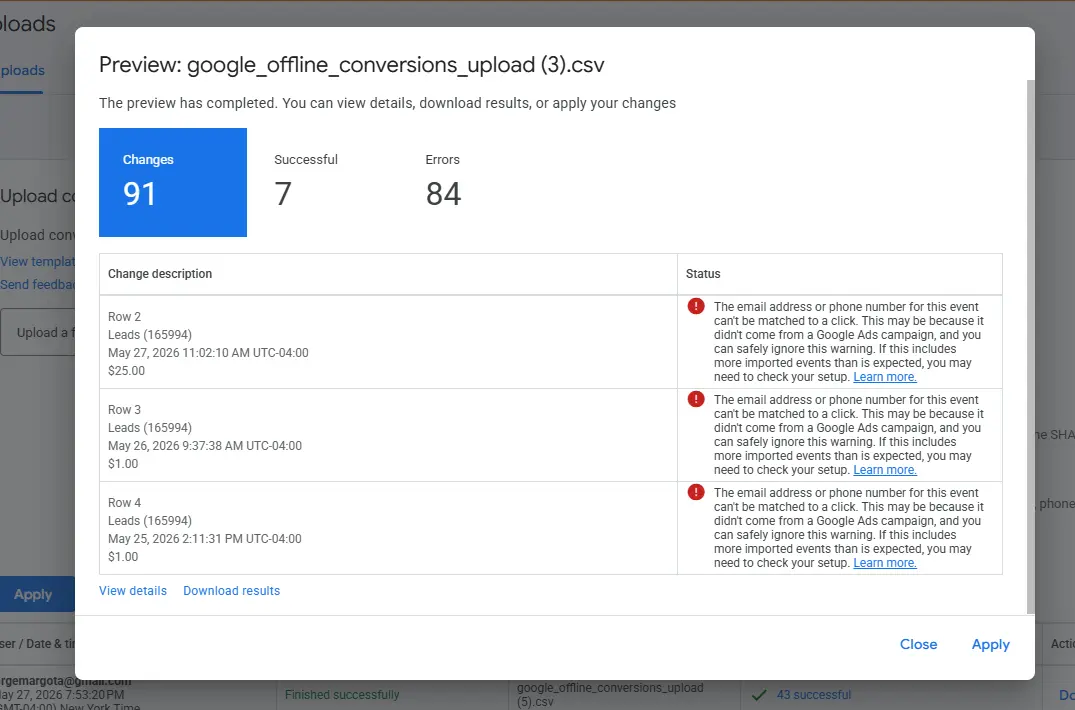
Used the Email/Phone template, uploaded 91 leads. Result: 7 successful, 84 errors. An 8% match rate. The template was correct but the strategy was wrong because most “CPC” leads weren’t actually from Google Ads clicks.
Filter to leads that have a valid GCLID (proves real Google Ads click). Switch to the hybrid GCLID template. Use Quote Value tiers with a $1 floor for disqualified leads. Result: 43 of 43 successful.
Target CPA will ignore your value tiers entirely. Switch to Maximize Conversion Value (no target ROAS yet) to actually use the good vs bad signal you just uploaded.
This breaks again in 30 days if you don’t keep uploading. Smart Bidding weights recent data heaviest. One backfill buys you maybe 4 to 6 weeks before the signal decays.
When your tracking stops firing, Smart Bidding goes blind.
Google Ads Smart Bidding doesn’t optimize toward leads it can’t see. If your CRM to Google Ads connection breaks (WhatConverts, Zapier, native API, whatever), the algorithm keeps spending your money but stops learning what works. Days turn into weeks. Performance drifts off the cliff. The first person to notice is whoever opens the next report.
Conversions stopped happening in Google. The leads were still happening in real life.
This walkthrough is from a real law firm account I manage. Mid quarter, the WhatConverts integration started throwing parse errors on individual leads. The error messages were buried in WhatConverts itself, not surfaced in Google Ads. From Google’s view, those conversions just stopped happening in Google. In real life, they kept happening every day.
The fix is offline conversion upload. You take your CRM data (or in this case, the WhatConverts export), format it the way Google wants, upload it manually, and Google backfills the missing conversion signal. Sounds simple. It wasn’t simple.
Of 91 leads uploaded, only 7 matched. 84 came back as errors.
The errors said “you can safely ignore this warning.” Reading Google’s documentation more carefully, the warning is normal for a few unmatched rows. When it fires on 92% of them, you have the wrong setup, not a few weird leads.
By the end of the night we landed 43 of 43. Here’s what happened in between.
Why the Email/Phone template failed.
We started with the most popular template. The result looked plausible at first glance and was actually a disaster. Here’s the template, why it fails for accounts like this one, and the Google warning text that almost tricked us into accepting it.
Google Ads gives you several offline conversion upload templates. The default one most people grab first is the Enhanced Conversions for Leads template that matches by hashed email and phone number. That sounds modern and privacy friendly because it is. It also has a low match rate for phone call leads. Here’s why.
You send Google an email or phone
Plain text in the CSV. Google handles the hashing on their side at ingest.
SHA-256 turns it into a fingerprint
One way conversion. The original value is never stored. Just the fingerprint.
Google checks signed-in accounts
If a Google user’s identifier hashes to the same string, match. Otherwise the row just sits there unmatched.
The match depends entirely on whether your lead’s identifier is tied to a Google account. Email and phone behave very differently here.
Most people use Gmail or some Google tied address. Their email IS their Google account. Form fill leads with email match cleanly.
Carrier phone numbers are rarely tied to a Google account. Most phone calls fail to match. This export had 86 phone calls and 8 form fills.
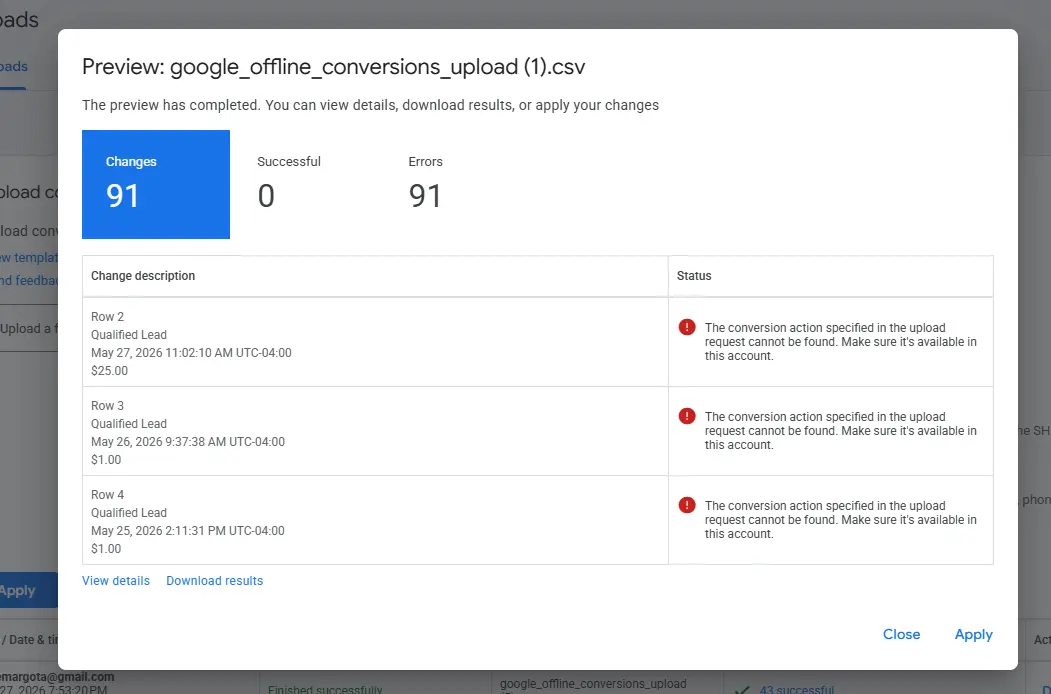
A warning written for one bad row, fired on 84 of 91.
Google’s error text says: “This may be because it didn’t come from a Google Ads campaign, and you can safely ignore this warning. If this includes more imported events than is expected, you may need to check your setup.”
Read that second sentence carefully. Almost every row in the upload was an unexpected event. If you read only the first sentence and click Apply, you’ve just uploaded 84 phantom conversions Google can’t use plus 7 real ones. Smart Bidding can’t learn from the 84. The 7 alone aren’t enough conversion volume to train value based bidding.
An 8% match rate isn’t a warning. It’s a sign you’re using the wrong template for your data.
Most “CPC” leads aren’t actually CPC.
Here’s the part most people miss. Your CRM probably labels leads with source/medium attribution like “google / cpc.” It looks confident. It’s mostly wishful thinking.
WhatConverts (and most call tracking tools) attribute a lead based on the visitor’s session or referrer at the time of the call. If they visited from a Google Ad three days ago, then came back today through a saved bookmark and called, WhatConverts will still tag the call as “google / cpc.” The real GCLID, the one Google issued at click time, may or may not be captured.
Out of 94 leads in this account’s export, only 44 had a valid GCLID. The other 50 were tagged “google / cpc” by WhatConverts but Google Ads had no record of them as ad clicks. They were probably organic, GMB, or repeat callers from saved numbers. Uploading them as Google Ads conversions would have lied to Smart Bidding.
“Google / CPC”
Source/medium label assigned by attribution logic, often optimistically.
- Based on last touch or session referrer
- Includes repeat callers from saved numbers
- May survive even if the ad click was weeks ago
- Google Ads can’t verify any of it
A valid GCLID
The click ID Google issued. The only attribution Google verifies itself.
- Issued by Google at the moment of click
- Tied to a specific ad, keyword, and audience
- Valid for 90 days from click time
- ~100% match rate when uploaded back
How to filter to real CPC leads
In your CRM export, find the GCLID column. Drop every row where it is empty or where the value looks malformed (under 20 characters, all digits, etc). A real GCLID looks like a long base64-style string with letters, numbers, dashes, and underscores. If the column is missing entirely, your tracking implementation never captured GCLIDs and that’s the actual project you need to fix first.
For this account, the GCLID filter cut 94 leads down to 43. Those 43 are the ones Google can verify as paid clicks. Uploading those alone gives clean signal. Adding the other 51 just contaminates it.
The four upload errors · what they mean, what fixes them.
Between attempt one and the successful upload, we hit four distinct Google Ads errors. If you’re doing this yourself you’ll probably hit at least two of them. Here’s the field guide.
You picked Google Sheets mode when you meant File Upload
The Uploads page has two source modes: file upload and linked Google Sheet. Sheet mode requires you to share the Sheet with a Google service account email. If you tried to upload from your computer in Sheet mode, this error fires.
You used the GCLID only template on an ECL enabled account
If your account has Enhanced Conversions for Leads enabled (which is on by default in newer accounts), Google requires the hybrid template with all columns including Email, Phone Number, Ad User Data, Ad Personalization. The simpler GCLID only template gets rejected.
The Conversion Name doesn’t match exactly
Google does a literal string match on the conversion action name. Trailing spaces, case differences, parentheses included or excluded, they all break the match. If WhatConverts created your action automatically, it may be named with the WhatConverts profile ID in parentheses (like “Leads (165994)”) and that whole string is the literal name.
Most of your leads didn’t actually come from Google Ads
This is the one that bit us. The warning is genuine when it fires on a handful of rows. When it fires on 80%+ of rows, your CRM is sending you non CPC leads tagged as CPC. The fix isn’t in the template, it is in the data.
Two extra notes that saved us debugging time later. First: when you open the CSV in Google Sheets it might reformat phone numbers as scientific notation, stripping the leading +. Lock the column to Plain Text before uploading or use a CSV viewer that doesn’t “help.” Second: the upload preview is your friend. Always click Preview first and look at the success/error breakdown before clicking Apply. Apply is permanent.
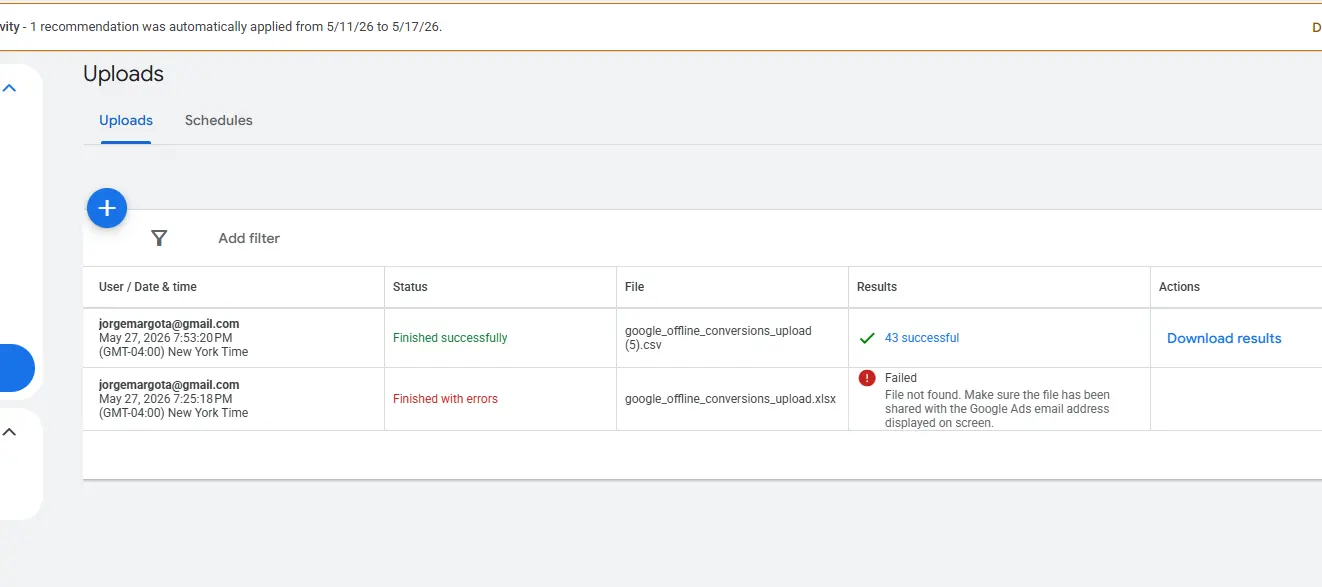
Zero errors. 43 of 43 matched. Same account, same night.
The difference between the first upload and the last wasn’t the file format. It was the filter logic before the file was even built. Drop the leads Google couldn’t verify. Trust the GCLID. Skip the ones with optimistic CRM attribution.
Once we did that, the template errors went away too. The hybrid template that had been rejecting itself with “missing data columns” suddenly parsed cleanly because every row had a primary identifier Google could trust.
Teaching Google good lead vs bad lead.
The whole point of offline conversion upload, beyond just having data, is to assign different values to different leads so Smart Bidding learns which clicks produce real cases and which produce time wasters. A flat $1 on every lead is a flat signal. A range from $1 to $150 teaches a lot.
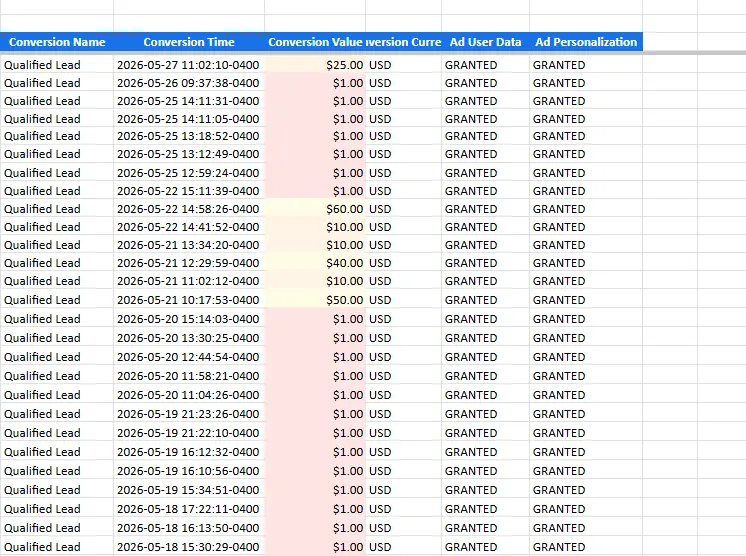
Your CRM probably has a value column you forgot existed.
The WhatConverts export already had a Quote Value field on every lead. $0 for disqualified ones. $25 for standard. Up to $150 for the best. We used that column directly. No new scoring system needed.
One Google rule though. Don’t upload $0 conversions, the algorithm can’t learn from them. For the disqualified leads we used $1 as the floor instead. Same signal that the lead happened, but the value sits low enough that Smart Bidding learns to deprioritize those click patterns over time.
Why the ratio matters more than the absolute numbers
You can pick different value scales. $1 to $150 works. $10 to $1,500 works. $100 to $10,000 works (if you have actual case value data, this is better). What matters is the ratio between best and worst. A 150x spread tells Smart Bidding “the best leads are dramatically more valuable than the worst ones.” That signal is what shifts spend toward the keywords, devices, locations, and audiences that produce high value patterns.
If you have your real signed case data from your CRM, use that instead of intake grades. A signed PI case is worth tens of thousands in fees. The wider your value spread, the more Smart Bidding can differentiate. We didn’t have signed case data flowing yet in this account, so the intake grade was the proxy.
Without tiered values, Smart Bidding sees “conversion happened” and chases more of them indiscriminately. With tiered values, it learns which conversions to chase harder.
Why Target CPA can’t use your values.
Here’s the part that surprised me when I started doing this. You can spend hours getting your tiered values uploaded cleanly, and then if your campaign is on Target CPA, none of it matters. tCPA literally doesn’t look at the value column.
Target CPA optimizes for the lowest cost per conversion regardless of what that conversion is worth. A $1 disqualified lead and a $150 high value lead are identical inputs to tCPA. It just wants to find more conversions at the target cost. Uploading tiered values into a tCPA campaign is like sending a five star Yelp review to a restaurant that doesn’t have computers.
What tCPA sees in your upload
Conversion 1: $1.00  → "conversion"
Conversion 2: $25.00 → "conversion"
Conversion 3: $150.00 → "conversion"

All three: count as 1 conversion each
Bid behavior: chase any conversion
Value column: not read
tCPA is the wrong strategy if you have done the work of tiering values.
What Max Conv Value sees
Conversion 1: $1.00   → low priority
Conversion 2: $25.00  → standard
Conversion 3: $150.00 → high priority

Bid behavior: chase high value patterns
Value column: primary signal
Result: spend shifts toward $150 leads
Maximize Conversion Value (with no target ROAS yet) is the correct first move.
The conversion action setting that breaks everything silently
Open your conversion action settings. Find the Value field. It needs to say “Use different values for each conversion.” If it says “Same value: $X” or “Don’t use a value,” Smart Bidding will use that setting instead of your uploaded values. You can upload all the tiers you want and they’ll be invisible.
This setting is the single biggest silent killer of value based bidding setups. Most agencies never check it. Most accounts default to “Same value” because the auto creation flow doesn’t ask. Take 30 seconds tonight to verify yours.
One upload isn’t enough.
The most useful thing I learned tonight, beyond all the format debugging: a manual offline conversion upload has a shelf life of about 30 to 45 days. Smart Bidding weighs recent conversions more heavily than older ones. The April leads in your upload will start losing weight in the model by mid June. By July they barely matter.
It’s fine if your CRM to Google Ads integration is firing automatically. Each new lead adds to the data flow and the model stays current. It’s a problem if your integration is broken (as ours was) and you’re doing this manually. Skip a week and your value signal starts degrading. Skip a month and you’re back to where you started.
The last ~30 days of conversion data drives the bulk of Smart Bidding decisions.
Older data still trains long term patterns, but day to day bidding optimizes on what is recent. If your data flow is intermittent, your signal is too.
Two paths from here
Path one: fix the auto firing integration. If WhatConverts is your tool, dig into why it stopped. The error messages in the lead export (“wbraid parameter not modified”, “call or click can’t be found”) usually point to GCLID capture issues, iOS attribution drops, or call routing handoff problems. Sometimes a phone number recycling issue. Fixing this is more important than the manual upload.
Path two: commit to weekly manual uploads. If you can’t fix the auto firing in the next 30 days, schedule yourself to repeat this process every Monday with the prior week’s leads. Build a script that takes your CRM export and outputs the GCLID template CSV in one step. The hour you save in scripting pays for itself every week.
What you can’t do is set up offline conversion upload once, walk away, and expect Smart Bidding to remember. The signal decays. The model adjusts. Your campaigns drift back to optimizing for cheap conversions instead of valuable ones.
Offline conversion upload isn’t a one time fix. It’s a weekly habit or it doesn’t work.
The workflow you can copy tomorrow.
If you’re uploading offline conversions for the first time, run through these in order. Each step took us minutes once we knew what to do, hours when we didn’t.
Goals → Conversions → Summary → click your action. Copy the name at the top, including any parentheses, numbers, or trailing characters. This is the most common source of upload errors.
Same conversion action → Edit settings → Value section. If this isn’t set to “Use different values,” your tiers will be ignored even after a successful upload. Fix it before uploading.
From WhatConverts, CallRail, HubSpot, whatever you use. Drop rows where GCLID is empty or malformed. Also drop your own test calls. Keep the Quote Value or signed case value column.
Headers in this exact order: Google Click ID, Conversion Name, Conversion Time, Conversion Value, Conversion Currency, Email, Phone Number, Ad User Data, Ad Personalization. Time format yyyy-MM-dd HH:mm:ss-0400 (with your offset). Phone format +1XXXXXXXXXX. Consent fields GRANTED.
Map your lead quality grades to dollar values. Disqualified leads get $1 minimum (never $0, Google rejects those). Spread the range as wide as you can to give Smart Bidding strong differentiation.
Uploads tab → + button → switch dropdown to “Upload a file” → pick your CSV. Always Preview first. Never Apply without checking the success/error count.
The upload processes overnight. Look for match rate, error counts, and which conversion action they landed in. Then check “All conv. value (by conv. time)” in your campaign reports for the upload date range to confirm values flowed through.
Smart Bidding needs ongoing data. One upload buys you 30 to 45 days of fresh signal. Either commit to weekly uploads or get your CRM to Google Ads integration firing again.
Marketing operations guidance based on real account work. Your account settings, conversion configuration, and Google Ads version may differ. Verify settings in your own account before applying broad changes.
What other people will ask.
Why does my Google Ads upload show errors but say I can ignore them?
Those CLICK_NOT_FOUND errors mean the lead’s email or phone couldn’t be matched to a Google Ads click. Google’s own docs say these are expected for events that didn’t come from Google Ads campaigns. The fix isn’t to ignore them. It’s to stop uploading leads that didn’t come from Google Ads in the first place. Filter to GCLID confirmed leads only and the error rate drops to near zero.
What is the difference between the Email/Phone template and the GCLID template?
The email/phone template matches conversions to Google accounts using hashed user data. Match rate is low for phone numbers because most phones aren’t tied to a Google account. The GCLID template matches directly to a specific ad click that Google itself issued. Match rate is near 100% when the GCLID is valid and inside the 90 day window. For lead generation with mostly phone calls, GCLID is dramatically better.
Why does my conversion action have a number in parentheses like “Leads (165994)”?
The number in parentheses is the conversion action ID Google Ads displays alongside the name to disambiguate identically named actions. Sometimes you only need the name part (in our case, “Leads”). Sometimes the full string including parentheses is the literal name, especially if a third party tool like WhatConverts created the action. If the short name fails with NO_CONVERSION_ACTION_FOUND, try the full string as displayed.
Should I create a new conversion action for manual uploads or use my existing one?
Depends on whether your existing tool is firing automatically. If it is, don’t also upload manually to the same action or you’ll double count. Create a separate Import type conversion action just for manual uploads. If your existing integration has stopped firing (parsing errors, GCLID issues, etc), then uploading to it backfills the gap with no duplication risk. Either way, the conversion action must be type Import. Website type actions can’t accept manual uploads.
Will Target CPA use my uploaded conversion values?
No. Target CPA optimizes for lowest cost per conversion regardless of value. A $1 lead and a $150 lead are identical to tCPA. The only bid strategies that use your tiered values are Maximize Conversion Value and Target ROAS. Switching to one of those is the entire reason for tiering values in the first place.
How often do I need to do this upload for it to actually work?
Smart Bidding weighs the last 30 days of conversion data more heavily than older data. A one time backfill provides initial training but the signal decays as the dates roll off. Plan for weekly uploads at minimum if your auto firing integration is broken. Daily is better. If you can’t commit to this cadence, prioritize fixing the auto firing integration before relying on offline conversion tracking for bid optimization.
Want me to walk through your account directly?
Send me your CRM export and your conversion action setup. I will tell you which leads to upload, which to drop, what your value tiers should look like based on your actual case economics, and which bid strategy to run after. Same playbook from this post, applied to your numbers.
Get an account audit →